Section 1 of 8
Getting started
Sign in and set your zip. Two minutes and you're ready to plan.
Plant It Planner needs two things to plan your season: who you are, and where you are. Sign in once and the app remembers everything across iOS, Android, and the web — change a plant on your phone and it shows up on your laptop in seconds.
Your zip code is how the app figures out your last and first frost dates, which drives every planting recommendation it makes. You can always change it later in Settings.
- 1
Sign in
Open the app and pick Apple, Google, or Email. The account you choose is the one your data syncs to, so use one you'll keep around.
If you've used Plant It Planner before, just sign in again with the same provider — your gardens, plants, and journal entries all come back automatically.
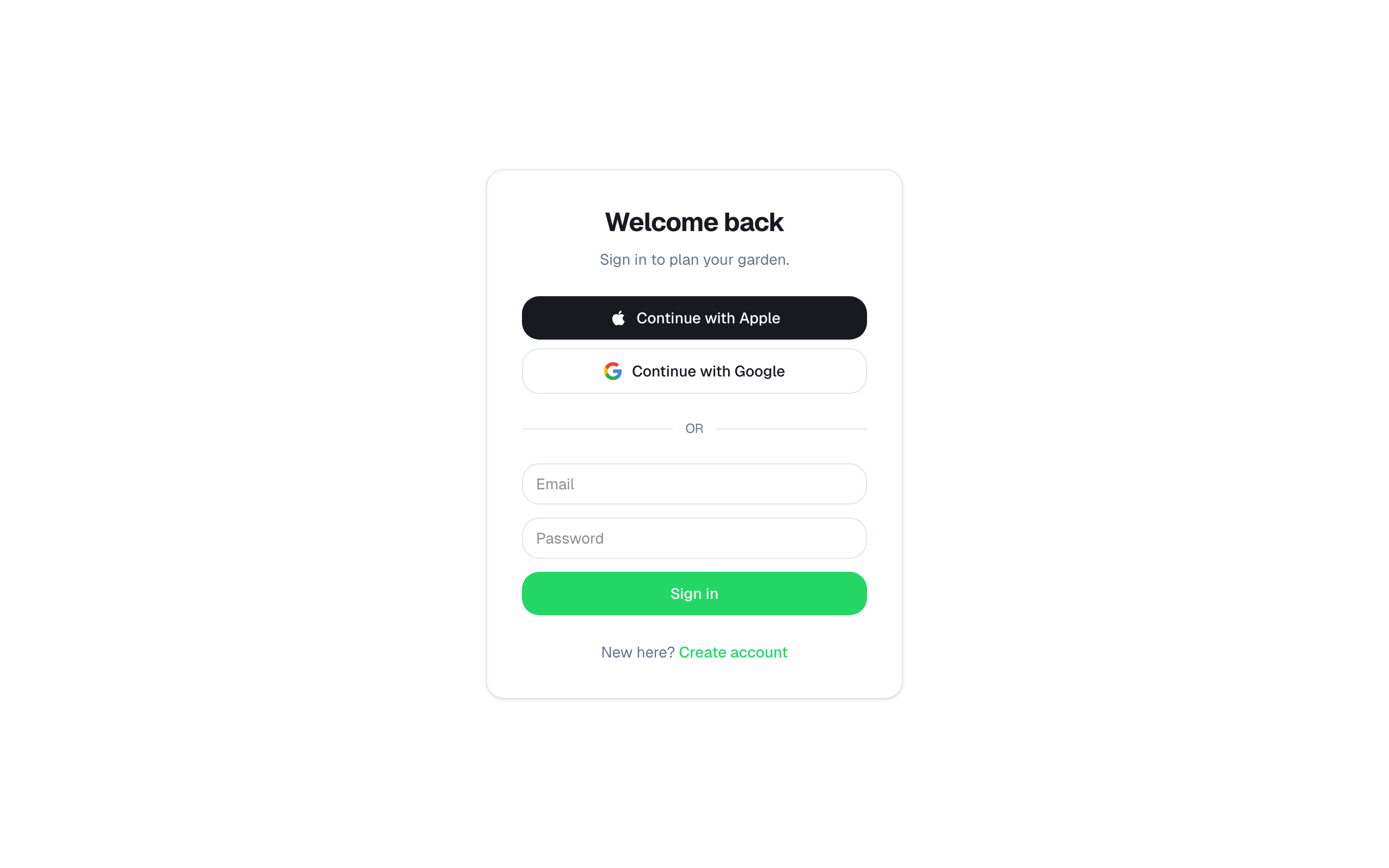
Sign-in screen. - 2
Enter your zip code
After your first sign-in, the app will ask for your zip. This sets your last frost and first frost dates from a built-in dataset, so the schedule lines up with what's actually happening outside your window.
If you live somewhere without a zip code, you can enter the closest one — frost dates are regional, not address-precise.
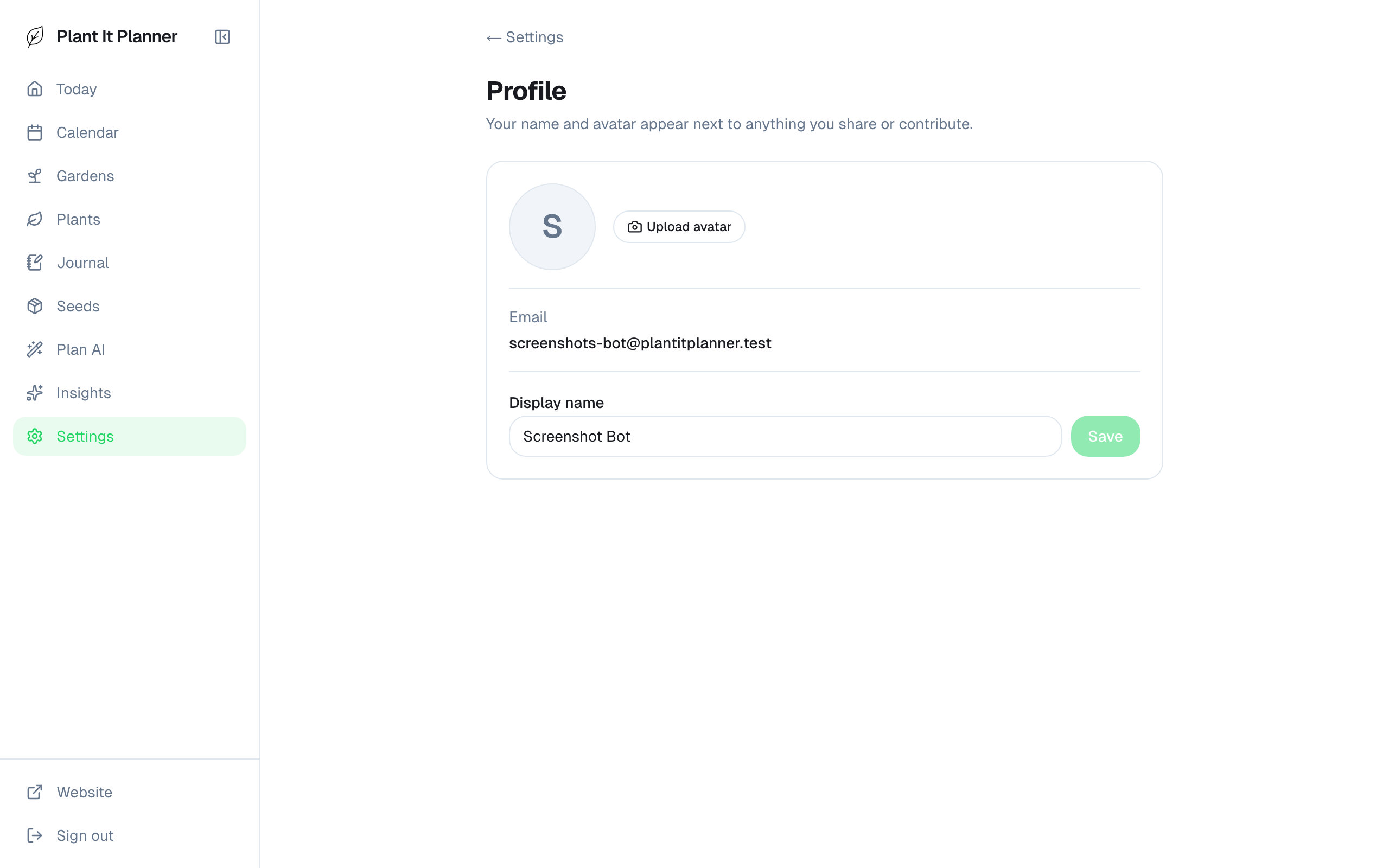
Enter your zip — frost dates fill in automatically. - 3
Pick your theme
From Settings you can switch theme (light, dark, or system) and toggle notifications. Measurement units (imperial/metric) are set from the mobile app and carry over automatically for weather display.
Notifications are off until you turn them on. Frost alerts specifically need notifications enabled before they fire.
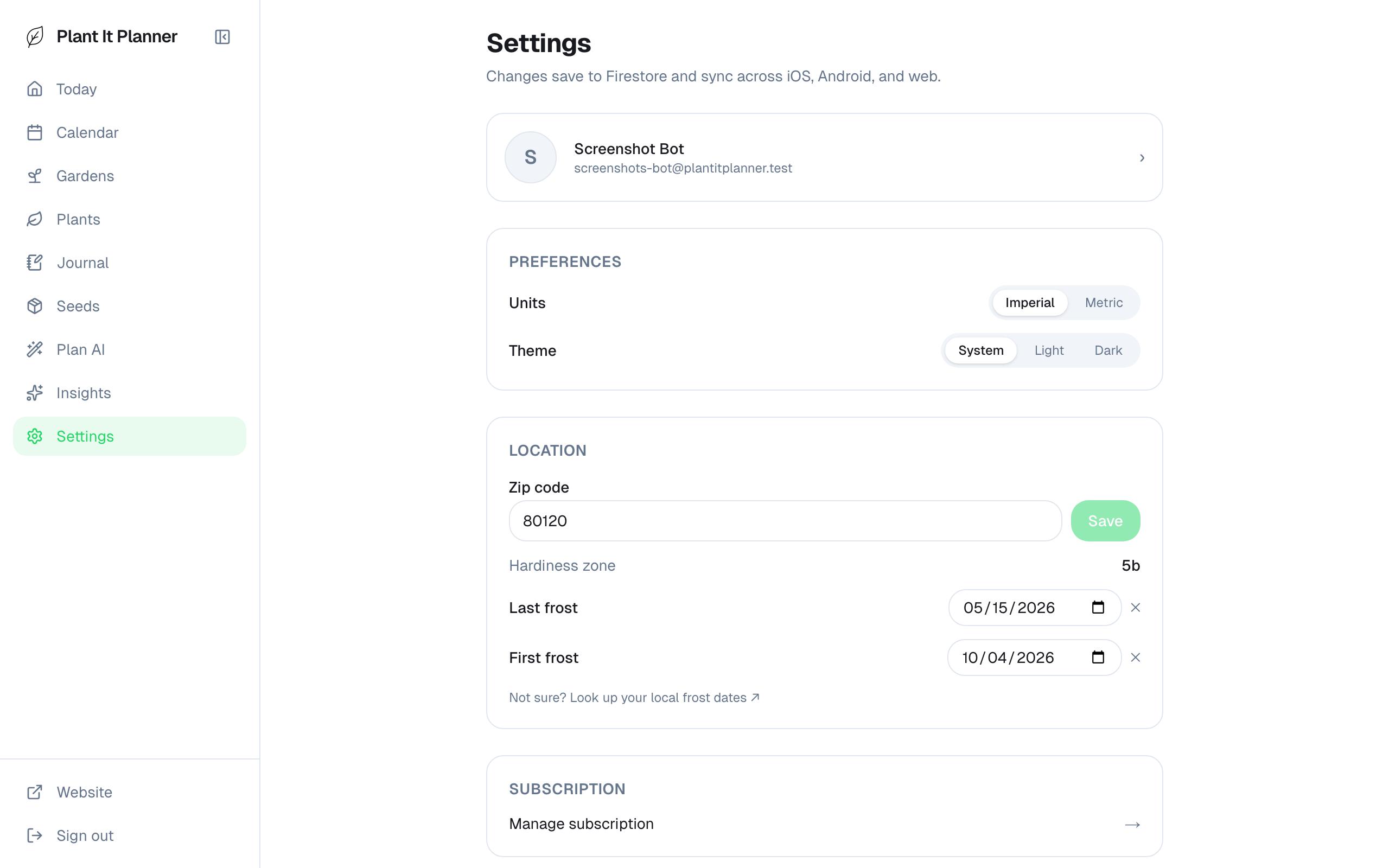
Settings — theme and notifications live here.
Tips
- Forgot your password? On the sign-in screen, enter your email and choose Forgot your password? — we'll send a reset link. It goes to the address you signed up with, so check your spam folder if it doesn't arrive within a few minutes. Continue with Apple or Continue with Google avoids passwords altogether: those accounts stay recoverable through Apple or Google themselves.
- Want to try the app without committing? Sign up, kick the tires, and delete the account from Settings → Profile if it's not for you.