Section 2 of 8
Today
The morning-coffee view: weather, briefing, and what's due to plant or harvest.
Today is the screen you'll use most. It pulls together everything that matters right now: the weather for your zip, your frost timeline, what's due to plant or harvest today, and a briefing that highlights anything unusual.
It's designed so a quick glance tells you what to do next — no scrolling through every garden looking for overdue tasks.
- 1
Cold launch
Open the app and Today loads first. The weather card refreshes automatically every few hours; pull down on the screen to force a refresh sooner.
If you don't see weather, double-check that your zip is set in Settings. Without it, the app can't fetch a forecast.
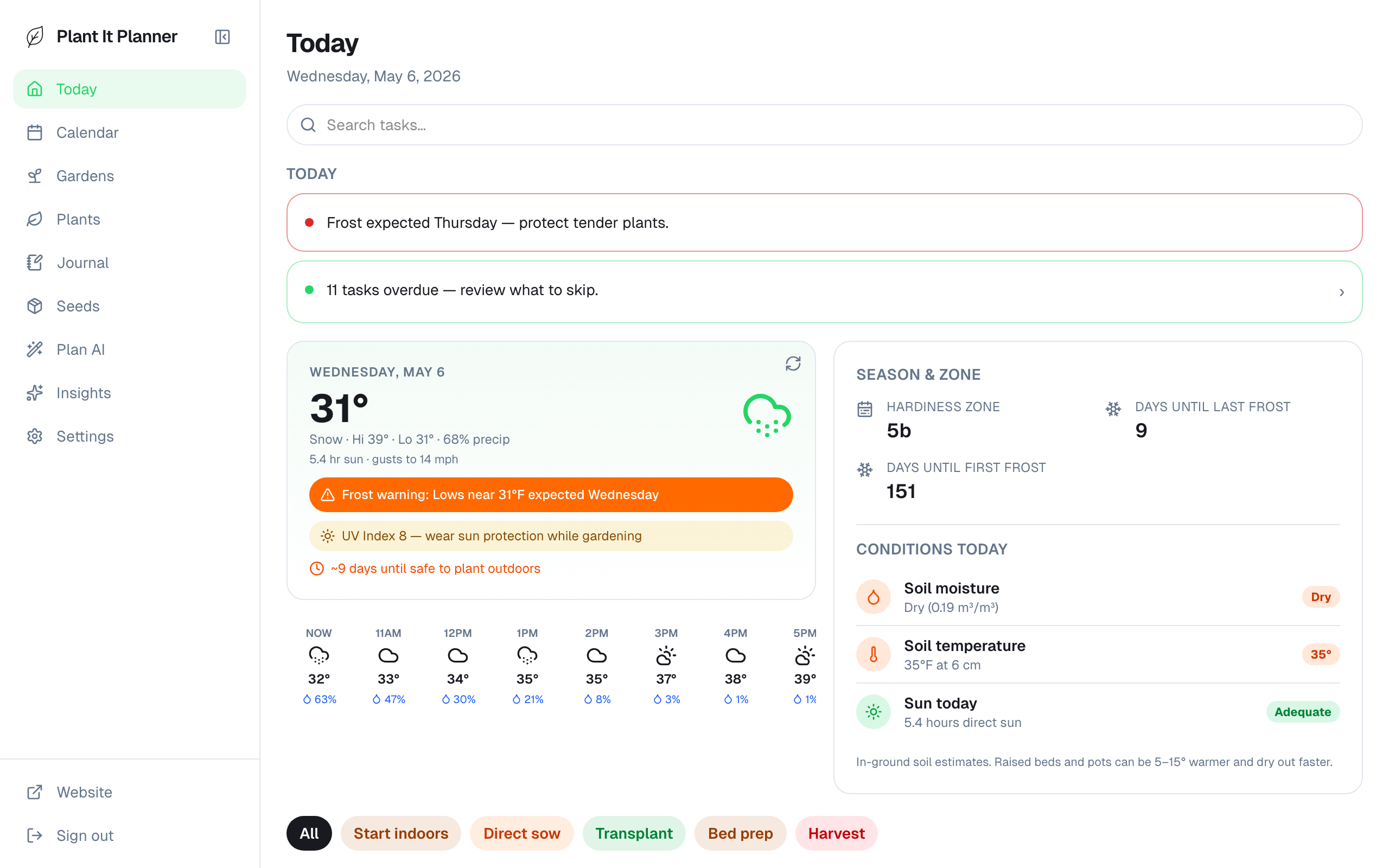
Today on iPad — weather + frost timeline + tasks all visible at once. - 2
Weather card
Current temperature, conditions, sunrise / sunset, and the next 12 hours. The conditions row at the bottom flags soil temperature, water budget, and UV when they're notable.
The forecast is from Open-Meteo and updates in the background. Cached values survive across app launches so the card never shows blank on cold start.
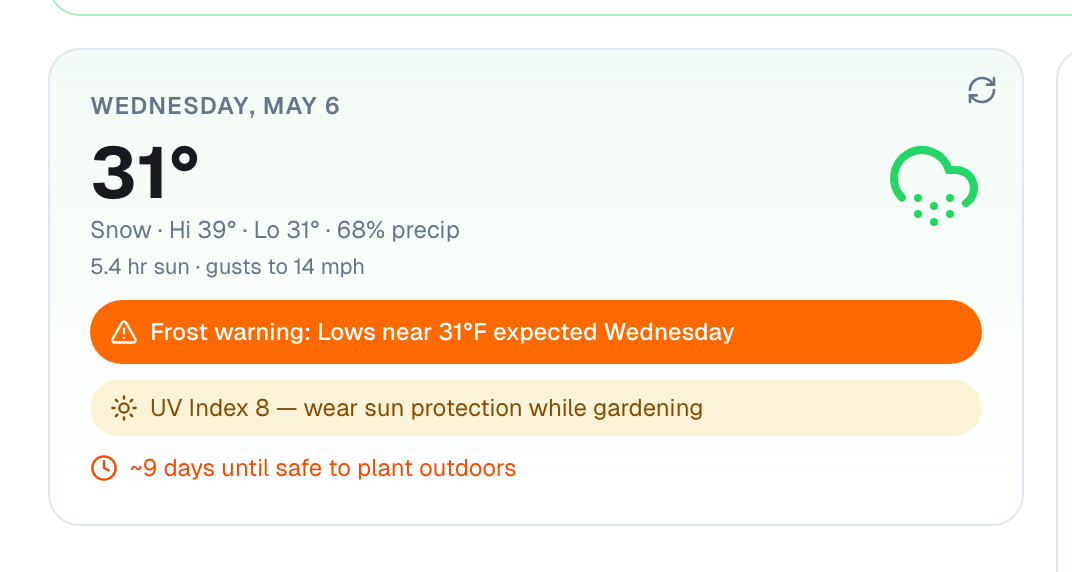
Weather card with hourly forecast strip. - 3
Daily briefing
Above the weather, one to three briefing headlines call out the most important thing to know today: a frost warning, a long dry stretch, a build-up of overdue tasks.
Tap any headline to jump straight to the relevant screen — frost briefings open Calendar, harvest briefings open the harvest sheet for that plant.

Briefing — the lede for your gardening day. - 4
Filter tasks by kind
The All / Start indoors / Direct sow / Transplant / Harvest chip row filters the task list below by activity. Tap a chip to focus on one kind; tap All to clear.
Tasks bucket into Overdue, Today, and This week — overdue tasks are red so you can see them at a glance.
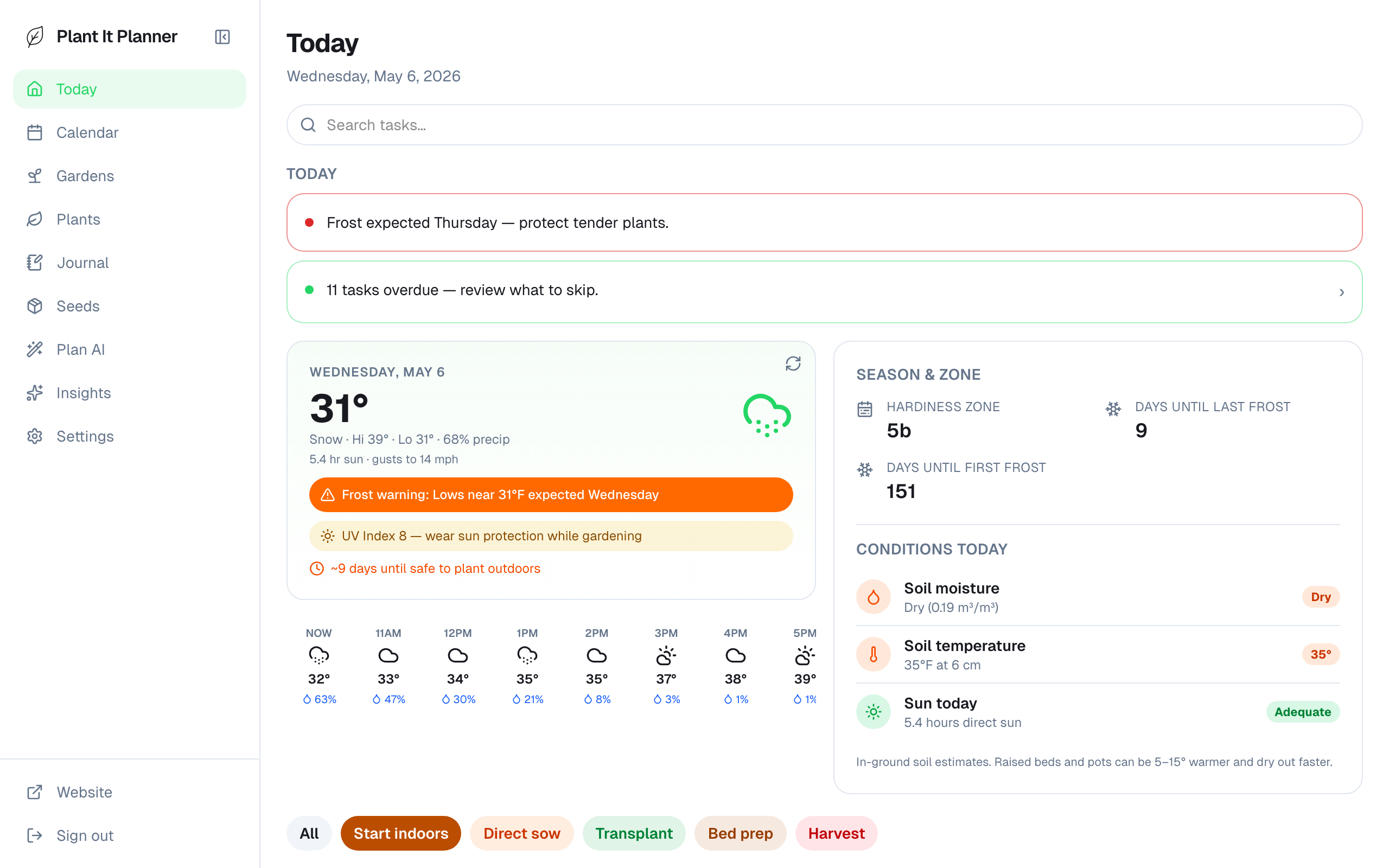
Filter chips at work — only Transplant tasks shown.
Tips
- Pull-to-refresh is rate-limited to once every 60 seconds — spam-pulling won't burn API credits.
- If a task is in the wrong week, long-press the bar in Calendar and drag it to the right date. The change syncs back to Today instantly.