Section 5 of 8
Calendar
The full season at a glance — drag tasks to reschedule, filter by activity.
Every plant in every garden generates schedule entries: start indoors, direct sow, transplant, harvest. Calendar rolls them all up into a single timeline you can scroll across the whole season.
It's the screen to use when you want to see the shape of your year, not just what's happening today.
- 1
Timeline view
Each row is a placement; each colored bar is a scheduled activity. Hover (web) or tap (mobile) a bar to see what it is, when it's due, and which plant.
The vertical line marks today. Past tasks are dimmed; upcoming tasks are full color.
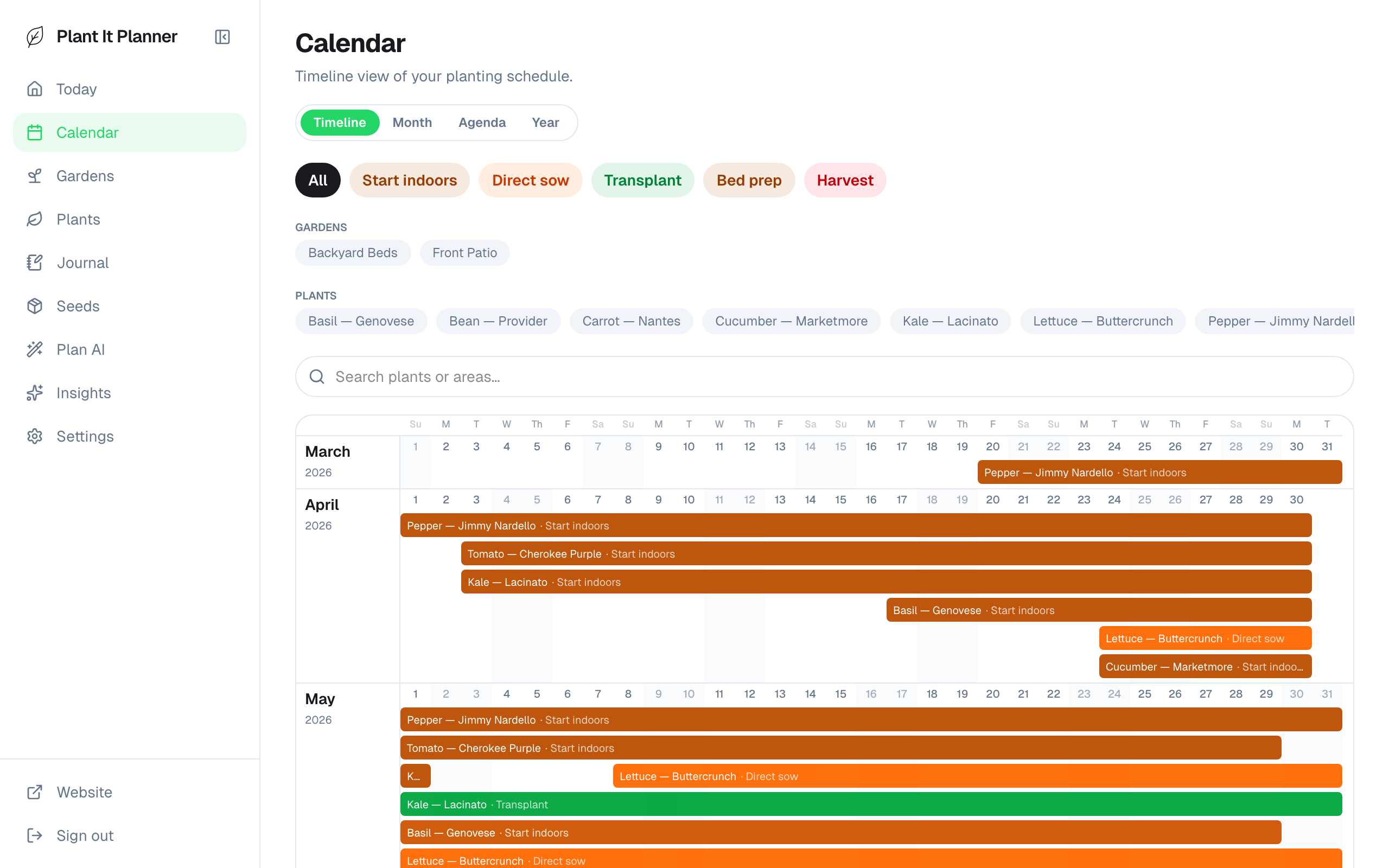
Timeline view — every placement, every task, full season. - 2
Drag to reschedule
Long-press a bar and drag it left or right to move that task earlier or later. The change rolls down to Today and the plant detail.
On the web, this is a tap-and-hold + drag with the mouse. On mobile, the long-press fires after about half a second.
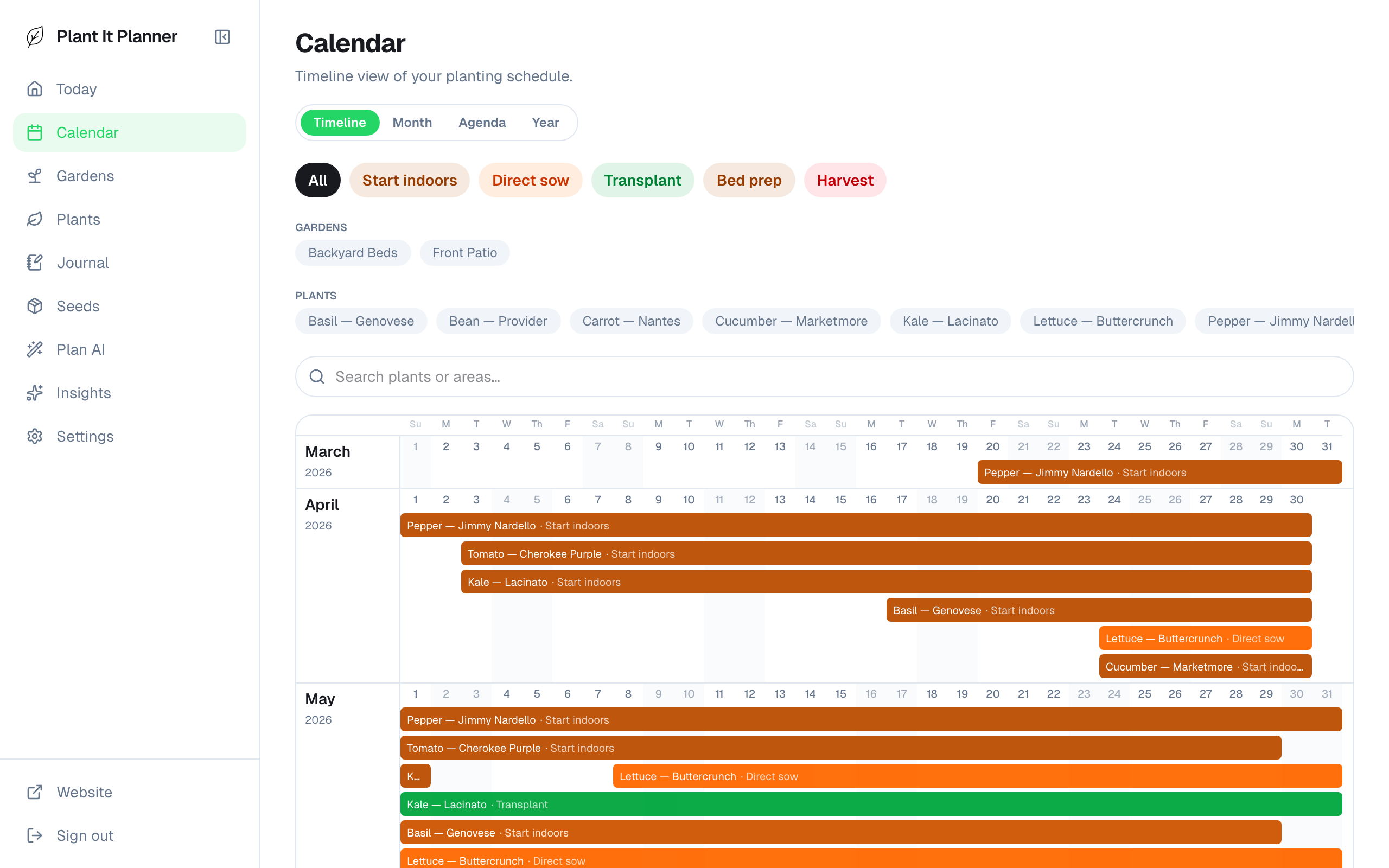
Drag-to-reschedule — moves the date for that single placement. - 3
Filter by kind
The kind chips at the top filter the timeline. Tap Harvest to see only harvest windows; Start indoors to see only seed-starting; All to see everything.
Useful in late winter when you're trying to plan seed-starting without the noise of the summer harvest schedule.
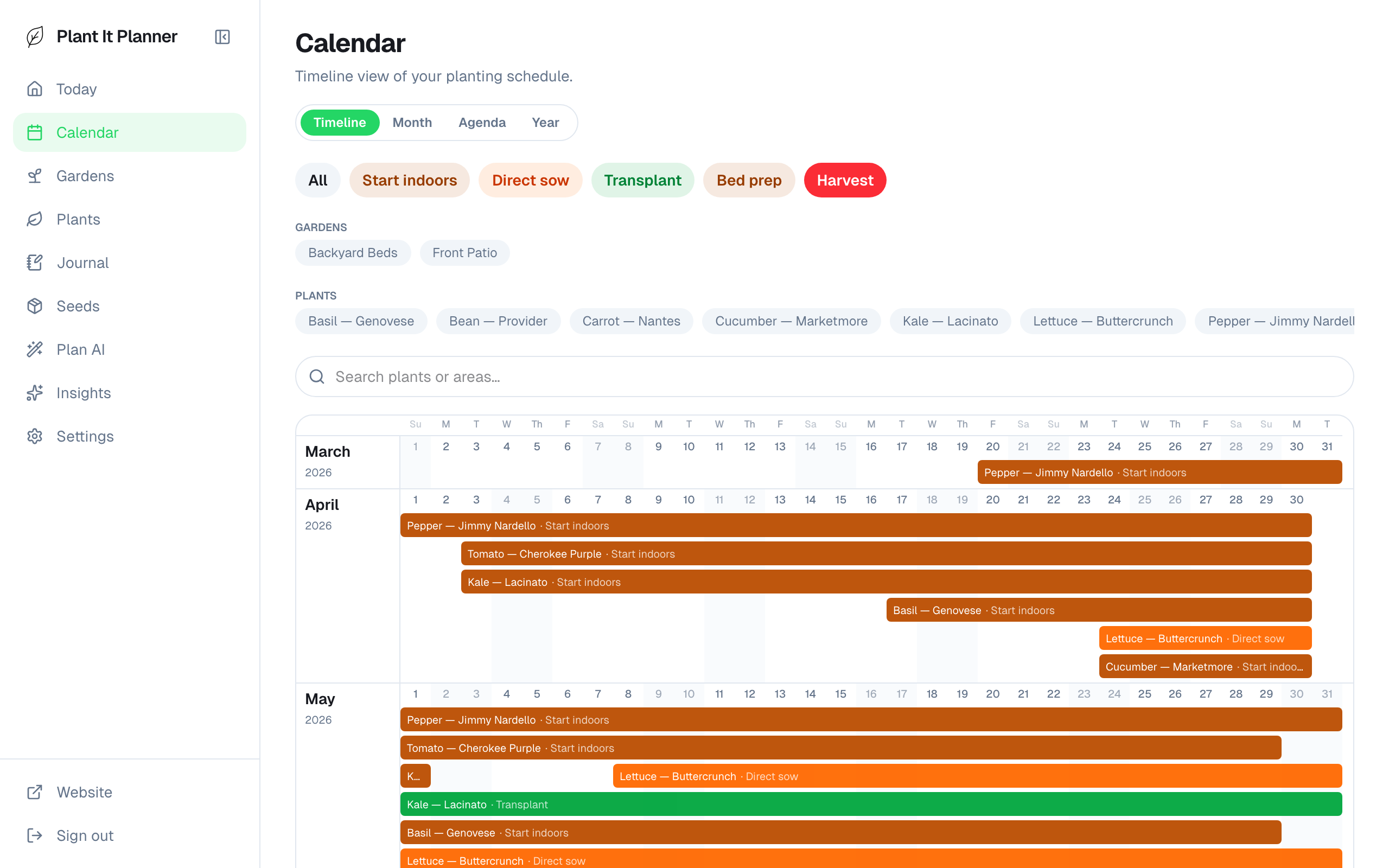
Filtered to Harvest only.