Section 4 of 8
Gardens & beds
Set up beds and pots, then place plants — the layout that drives every schedule.
A garden is a physical space — your backyard, the front patio, a community plot. Inside it you add beds (width × length, in inches) and pots (diameter × depth) to describe where things grow.
Plants live in beds and pots as placements — "3 tomatoes in Bed #1". Each placement gets its own schedule based on the plant's timing and your frost dates.
- 1
Create a garden
From Gardens, tap + New and give it a name ("Backyard beds") and, if you like, some notes. That's the whole form — beds and pots come next, from the garden's own page.
You can add as many gardens as you want — front yard, back yard, the rooftop, a parent's house — and the schedule treats each independently.
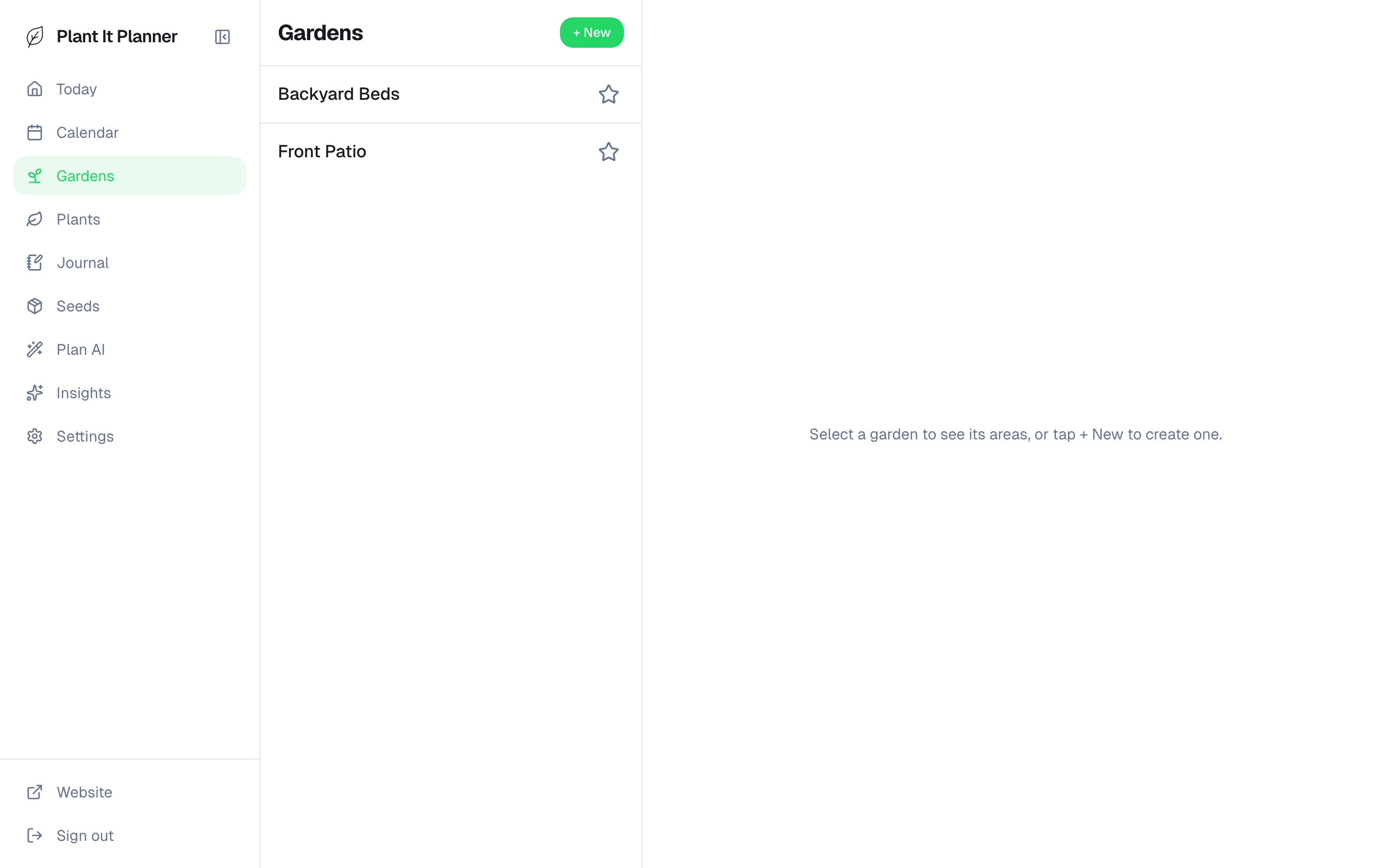
Gardens list — one card per garden. - 2
Add a bed or pot
Open your garden and tap + Add area. Choose Bed and enter width × length in inches, or Pot and enter diameter × depth. Give it a name ("Raised Bed #1") and save.
Add as many beds and pots as your garden actually has — the schedule and the layout editor both key off these dimensions, so it's worth getting them close.
- 3
Bed detail
Tap any bed to see its size, its placements, and edit options. Sizes display as feet (e.g. 4′ × 8′) when ≥12 inches, inches otherwise.
Edit width, length, name, or kind from this screen. Pots show diameter and depth instead.
- 4
Layout editor
Open a bed or pot and tap the preview thumbnail at the top of the page to enter the grid editor. Drag plant tiles to position them; the editor enforces real spacing based on each plant's spacing requirement.
Pinch to zoom on web (trackpad two-finger pinch in Safari). Tap the X badge on a tile to remove that placement.
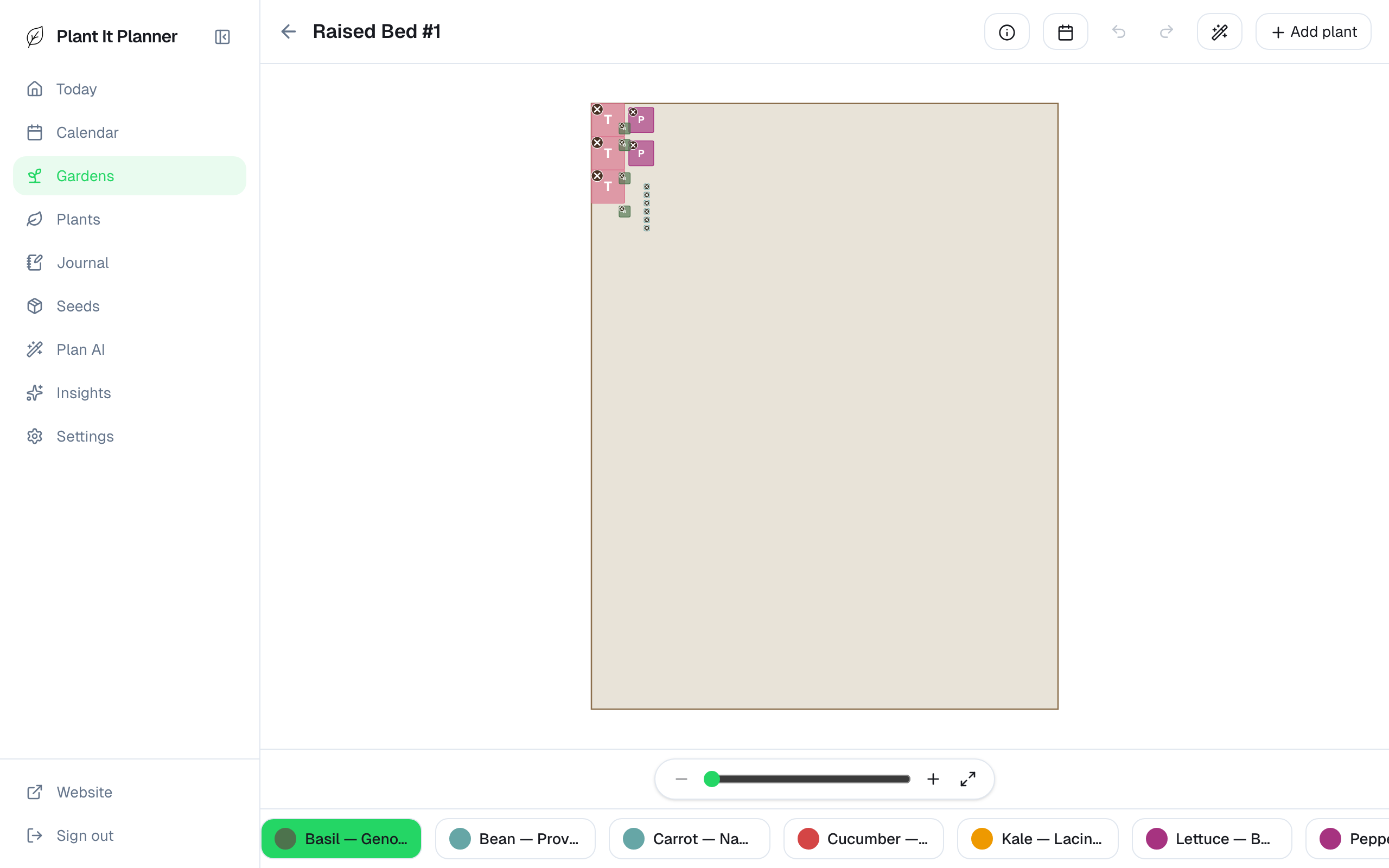
Layout editor — drag tiles to position plants. - 5
Add plants to a bed
From a bed or pot, tap + Add placement, pick a variety from your library, set quantity and any notes, and confirm. The schedule updates immediately.
Want to plant the same crop several times across the season? Toggle Succession planting in the same form — the app creates linked placements with staggered start dates (e.g. every two weeks).
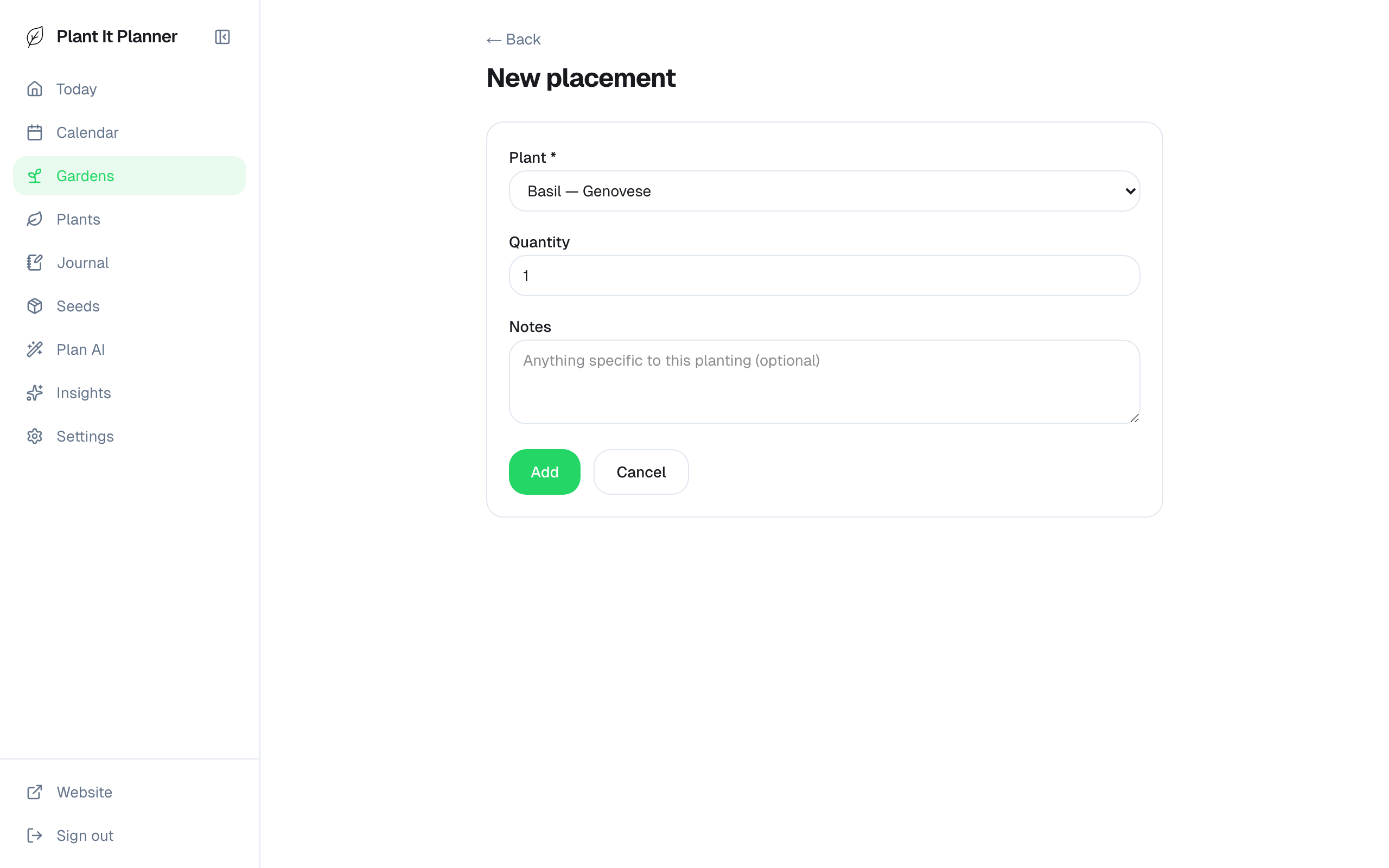
Adding a placement — pick a variety, set quantity, done.
Tips
- On iOS, a long-press inside a bed in the layout editor lets you reposition a tile. The same gesture works on Android.
- If a garden already has a saved map location from before, a read-only map preview appears above its areas — tap a bed or pot's shape to jump straight to its detail page. There's no map editor behind it.